
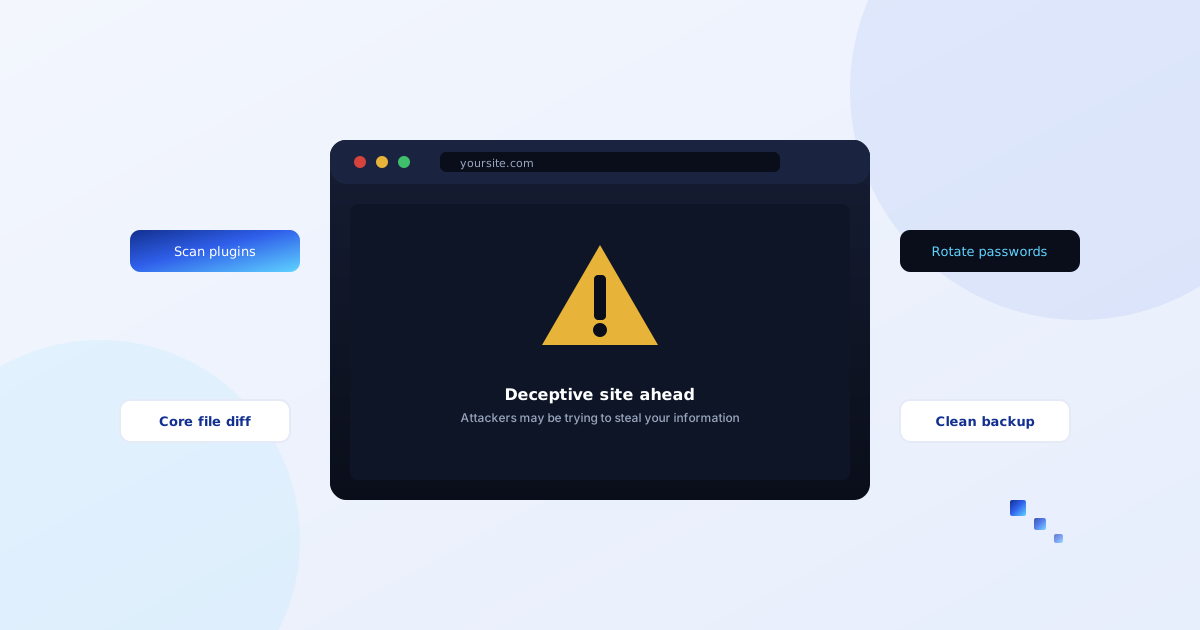
If you're reading this because your own site just got flagged, first: don't panic, and don't start randomly deleting plugins. We've cleaned up enough hacked WordPress sites at this point to know the panicked, undirected version of cleanup usually makes things slower to fix, not faster. There's an order to this, and skipping steps is exactly how sites get "cleaned" and then get reinfected two weeks later.
First, figure out what you're actually dealing with
"Hacked" covers a few different things, and they're not equally serious:
- Defacement — the site itself shows something obviously wrong (a different homepage, a message from the attacker). Annoying, but at least visible.
- Injected spam/redirects — the site looks normal to you, but redirects visitors from search engines to another site, or has hidden spam links/pages Google can see but you can't easily find. This is the most common one we see, and the sneakiest, because the owner often has no idea until Google flags it or traffic mysteriously drops.
- A backdoor with no visible symptom yet — the site looks completely fine, but there's a hidden file letting the attacker back in whenever they want. This is the one that gets missed in a rushed cleanup.
Check Google Search Console's Security Issues report first if you have access — it'll often tell you exactly what Google found and roughly where.
Step 1: Get it off the live internet, carefully
Don't just delete the site. Put it in maintenance mode or take it offline through your host's control panel if you can, but keep everything intact — you need the infected files to actually diagnose what happened, not just a clean slate. If the site is actively harming visitors (serving malware downloads, for instance), taking it fully offline immediately is the right call even before diagnosis.
Step 2: Change every password, assume everything is compromised
WordPress admin passwords, the database password, FTP/SFTP credentials, and your hosting account password itself. If an attacker had access long enough to inject malicious code, there's no way to know for certain which credentials they touched, so the safe assumption is all of them. Do this from a device you trust, not the compromised server's own webmail if that's hosted there too.
Step 3: Compare core files against a clean copy
This is the step that actually finds the problem, and it's the one most rushed cleanups skip. Download a fresh copy of WordPress core matching your exact version, and compare it file by file against what's on your server. Any core file that's been modified is a red flag — legitimate WordPress core files don't change between releases. The same logic applies to plugin and theme files: compare against the original from the WordPress.org repository or the developer's source, not just a "looks fine to me" scan.
What you're specifically looking for: files with recently modified timestamps you don't recognize, PHP files sitting in the uploads folder (uploads should hold media, not executable code — this alone is one of the most reliable red flags), and suspicious-looking function calls like eval(), base64_decode(), or gzinflate() wrapping unreadable strings, which is a very common way malicious code hides itself in an otherwise normal-looking file.
Something we see constantly: a client "fixes" the hack by removing the obvious defacement or restoring the homepage, but leaves the actual backdoor file in place because it wasn't the visibly broken thing. The site looks fine for a week, then gets reinfected through the exact same hole. Finding the entry point matters more than fixing the symptom.
Step 4: Check for new admin users and scheduled tasks
Look at your WordPress Users list for any admin account you don't recognize — attackers often create one as a backup way back in, separate from whatever they originally exploited. Also check wp_options in the database and any cron jobs (WordPress's built-in scheduled tasks) for anything unfamiliar, since some malware re-injects itself on a schedule specifically to survive a manual cleanup.
Step 5: Restore from a clean backup, if you have one you trust
If you have a backup from before the compromise, and you're confident about that timing, restoring it is usually faster and more reliable than manually cleaning every file. The catch is knowing the backup itself predates the infection — restoring a backup that already contains the backdoor just brings the problem back on a clean-looking server. This is exactly why regular, verified backups matter so much; it's the difference between a five-minute restore and a multi-hour manual cleanup.
Step 6: Update absolutely everything before you go back live
WordPress core, every plugin, every theme, PHP version if it's outdated. Most WordPress hacks don't come from some clever novel exploit — they come from a known, already-patched vulnerability in outdated software that nobody updated. This is the single most common root cause we find, by a wide margin.
Step 7: Ask Google to review it, once it's actually clean
If Google flagged the site with a security warning, use Search Console's "Request Review" after cleanup is genuinely complete. Requesting review before you're sure it's clean just costs you time — Google will find it again and you'll be back where you started, with less trust than before.
How to stop this from happening again
- Turn on automatic updates for plugins and WordPress core where you reasonably can.
- Use a proper password manager and unique passwords — reused or weak admin passwords are still one of the most common entry points.
- Limit login attempts and consider two-factor authentication on the WordPress admin login.
- Remove plugins and themes you're not actually using — an inactive plugin with a known vulnerability is still an open door.
- Keep automated, tested backups running somewhere other than the same server, so a compromised server can't also destroy your only backup copy.
The takeaway
A hacked WordPress site is almost never bad luck — it's nearly always an outdated plugin, a weak password, or both. The cleanup itself isn't complicated, but it has to be done in the right order, or you end up "fixing" the visible symptom while the actual entry point stays wide open.